▶ Prefer video? Tutorial 2 starts about halfway through the Quick Start walkthrough (MP4). Next: Tutorial 3: Box, Gear & Sketch →
Before you start: do Tutorial 1 first (
starter-help-and-tutorial.md). It covers the editor,params, and how Rebuild works. Every CADL listing below passesdsl.validateand builds to STEP withdesign/dsl.py. The measured results are noted under each listing. The AI may phrase its own result a little differently, but the structure will be the same.
What you'll learn
- Part A: a turned (round) part. You'll see two ways to build it, with stacked cylinders or with a single revolve profile, plus how to resize the bore and take the STEP file to CNC.
- Part B: a multi-face part. You'll drill holes from two different faces and learn how the hole [u, v] coordinates work on each face.
Set Mode to CNC (3-axis) if you'll machine it, or 3D print if you'll print it. Then enter:
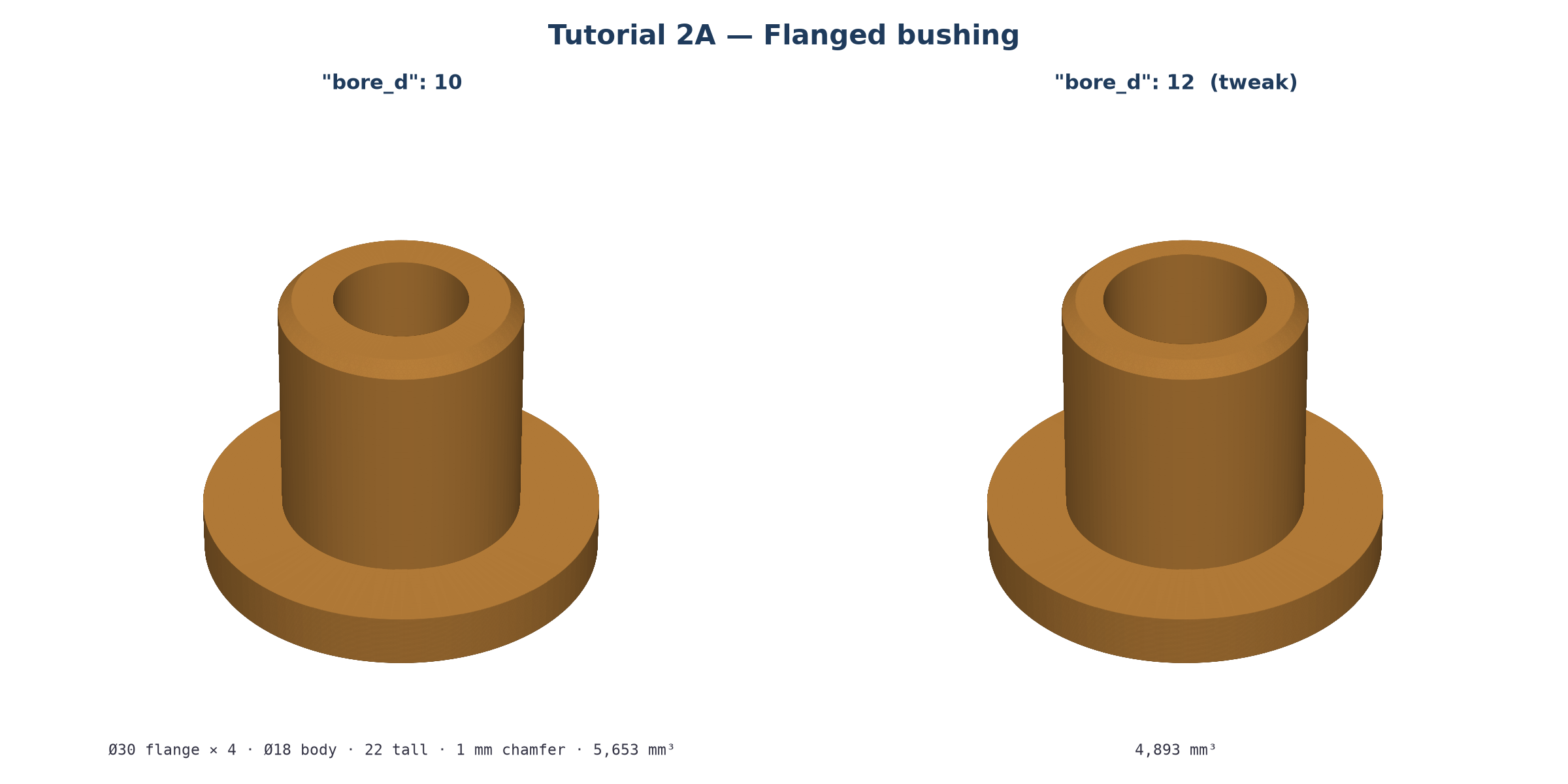
Flanged bushing: 30 mm flange diameter, 4 mm flange thickness, 18 mm body outer diameter, 22 mm total height, with a 10 mm through bore and a 1 mm chamfer on the top edge
Click Generate. You should get PASS with a bbox of 30 × 30 × 22 mm.
{
  "units": "mm",
  "plan": "1. Flange: cylinder Ø30 x 4, base centred on the origin (z 0..4). 2. Body: cylinder Ø18 x 22 on the same axis (z 0..22), overlapping the flange. 3. Union. 4. 1 mm chamfer on the outer top edge of the body, picked by a point on that edge. 5. Ø10 bore drilled through all from the top.",
  "issues": [
    {"type": "assumption", "msg": "Only the outer top edge is chamfered; the bore edge stays sharp.", "ref": "top_chamfer"},
    {"type": "assumption", "msg": "The flange sits at the bottom (z = 0).", "ref": "flange"}
  ],
  "params": {"flange_d": 30, "flange_h": 4, "body_d": 18, "total_h": 22, "bore_d": 10, "chamfer": 1},
  "steps": [
    {"id": "flange", "op": "cylinder", "diameter": "$flange_d", "height": "$flange_h"},
    {"id": "body",   "op": "cylinder", "diameter": "$body_d",   "height": "$total_h"},
    {"id": "blank",  "op": "union", "items": ["flange", "body"]},
    {"id": "top_chamfer", "op": "chamfer", "target": "blank", "distance": "$chamfer",
     "edges": "near", "points": [["=$body_d/2", 0, "$total_h"]]},
    {"id": "bore", "op": "hole", "target": "top_chamfer", "face": "top", "diameter": "$bore_d", "positions": [[0, 0]]}
  ],
  "result": "bore"
}
Measured: bbox 30.00 × 30.00 × 22.00 mm, volume 5,652.8 mm³. The STEP file has 3 cylindrical faces, 3 flat faces and 1 cone (the chamfer).
How the params work
| Param | Meaning | Used by |
|---|---|---|
flange_d |
Flange outer diameter | flange |
flange_h |
Flange thickness (z 0..4) | flange |
body_d |
Body outer diameter | body, and the point that picks the chamfer edge |
total_h |
Overall height, flange included (the body runs from z = 0, so the total stays exact) | body, chamfer point |
bore_d |
Through-bore diameter | bore |
chamfer |
Chamfer size | top_chamfer |
Why it's built this way
- Cylinders default to anchor: "base", so both start at z = 0 on the same axis. The body overlaps the flange instead of sitting on top of it. That keeps total_h truly the total height and gives the union a solid overlap.
- The chamfer uses edges: "near" with a point exactly on the outer top rim, [body_d/2, 0, total_h]. edges: "top" would also chamfer the bore rim, because every edge of the top face counts.
- The chamfer comes before the hole. At that point the top face has only one circular edge, so there's no ambiguity.
- The hole has no depth, so it goes through all. On face: "top", [0, 0] is the global x, y of the axis.
Alternative: one revolve profile (identical solid, also 5,652.8 mm³). Use this when you want the whole cross-section in one place:
{"units": "mm",
 "params": {"flange_d": 30, "flange_h": 4, "body_d": 18, "total_h": 22, "bore_d": 10, "chamfer": 1},
 "steps": [{"id": "bushing", "op": "revolve", "profile": [
   ["=$bore_d/2", 0], ["=$flange_d/2", 0], ["=$flange_d/2", "$flange_h"], ["=$body_d/2", "$flange_h"],
   ["=$body_d/2", "=$total_h-$chamfer"], ["=$body_d/2-$chamfer", "$total_h"], ["=$bore_d/2", "$total_h"]]}],
 "result": "bushing"}
The profile is a list of [r, z] points: radius out from the Z axis, and height. Starting at r = bore_d/2 instead of 0 leaves the bore hollow, and the diagonal point pair is the chamfer.
params, change "bore_d": 10 to "bore_d": 12.body_d - 2*chamfer, the build would fail and a red error line would appear. Click it to jump to the problem.⚠️ gsim simulates milling and printer G-code. It does not show lathe (turning) toolpaths, so check lathe code in your CAM program.
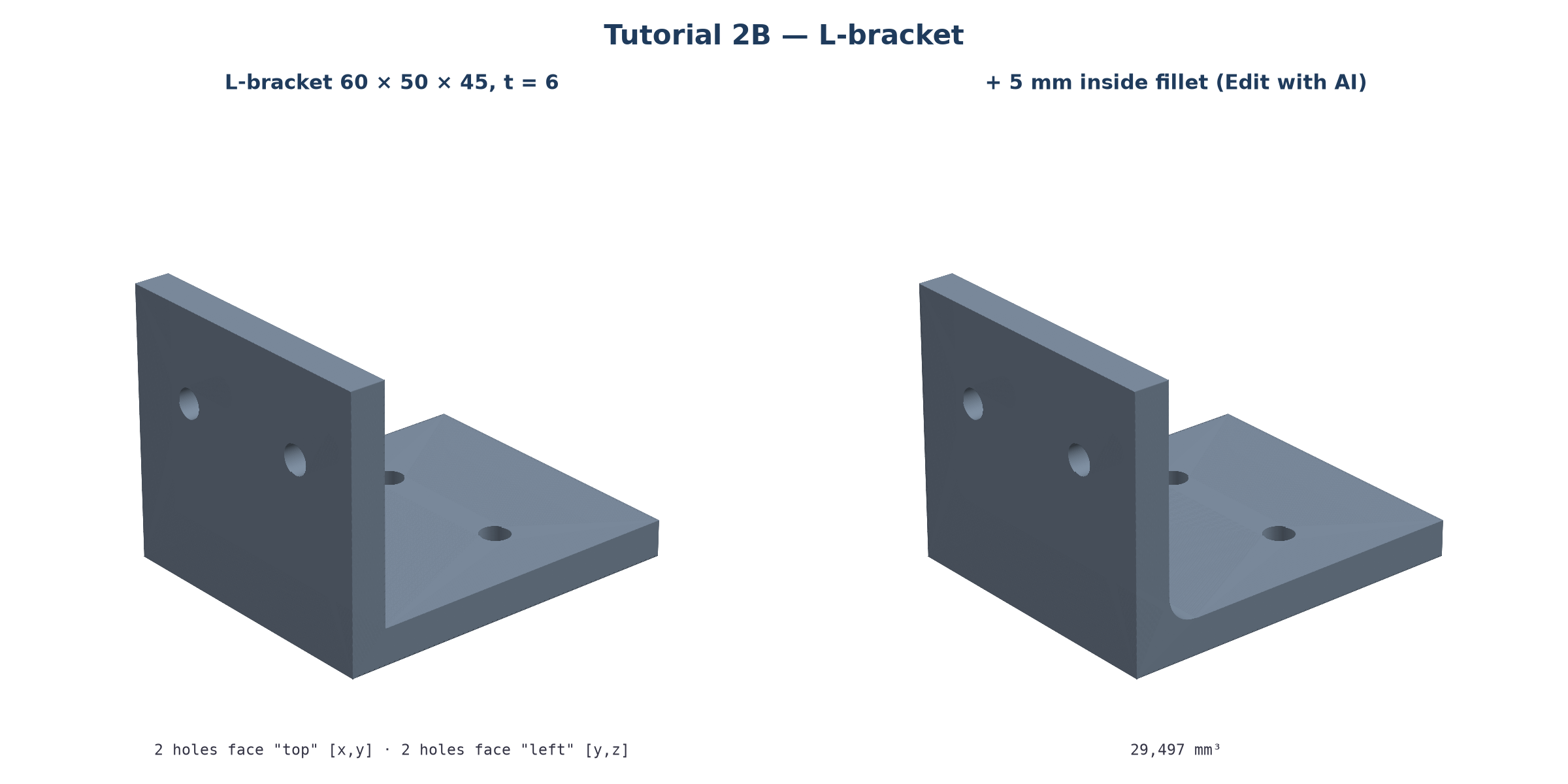
L-bracket 50 mm wide, base leg 60 mm long and 6 mm thick, vertical wall 45 mm tall and 6 mm thick, with two 5 mm holes in the base and two 5 mm holes in the vertical wall
You should get PASS with a bbox of 60 × 50 × 45 mm.
{
  "units": "mm",
  "plan": "1. Base: box 60(x) x 50(y) x 6(z) with its corner at the origin. 2. Wall: box 6 x 50 x 45 with its corner at the origin, so it overlaps the base at x 0..6, z 0..6. 3. Union. 4. Two Ø5 holes down through the base from the top face at x=38, y=12.5 and 37.5. 5. Two Ø5 holes through the wall from the left face (-X) at y=12.5 and 37.5, z=30.",
  "issues": [
    {"type": "assumption", "msg": "Base holes are at x = 38, 12.5 mm in from each side.", "ref": "$base_hole_x"},
    {"type": "assumption", "msg": "Wall holes are at z = 30 mm, well above the base.", "ref": "$wall_hole_z"}
  ],
  "params": {"w": 50, "base_l": 60, "t": 6, "wall_h": 45, "hole_d": 5, "edge": 12.5, "base_hole_x": 38, "wall_hole_z": 30},
  "steps": [
    {"id": "base",    "op": "box", "size": ["$base_l", "$w", "$t"],  "anchor": "corner"},
    {"id": "wall",    "op": "box", "size": ["$t", "$w", "$wall_h"],  "anchor": "corner"},
    {"id": "bracket", "op": "union", "items": ["base", "wall"]},
    {"id": "base_holes", "op": "hole", "target": "bracket", "face": "top", "diameter": "$hole_d",
     "positions": [["$base_hole_x", "$edge"], ["$base_hole_x", "=$w-$edge"]]},
    {"id": "wall_holes", "op": "hole", "target": "base_holes", "face": "left", "diameter": "$hole_d",
     "positions": [["$edge", "$wall_hole_z"], ["=$w-$edge", "$wall_hole_z"]]}
  ],
  "result": "wall_holes"
}
Measured: bbox 60.00 × 50.00 × 45.00 mm, volume 29,228.8 mm³. The STEP file has 4 cylindrical faces (the four holes).
[u, v] works on each faceA hole's face sets the drilling direction. Its positions are global coordinates in mm on the two other axes:
face |
Side of the target's bbox | Drills along | u |
v |
|---|---|---|---|---|
top / bottom |
+Z / −Z | Z | x | y |
front / back |
−Y / +Y | Y | x | z |
left / right |
−X / +X | X | y | z |
face: "top"). [38, 12.5] means x = 38, y = 12.5. "Top" means the top of the whole bracket's bbox (z = 45, the top of the wall). Because a hole with no depth goes through all, it still cuts cleanly down through the 6 mm base. Keep base_hole_x greater than t (6), or you'll drill into the wall.face: "left"). The wall is the −X side of the bbox (x 0..6), so [12.5, 30] means y = 12.5, z = 30. Keep wall_hole_z greater than t, or you'll hit the base.front? The front (−Y) face is the 50 mm edge of the L, so holes from there would run lengthwise through the part. Pick the face whose normal is the hole's axis."hole_d": 5 → 5.5 for M5 clearance."wall_h": 45 → 60. The wall grows, and the wall holes stay at wall_hole_z. You could make that a formula: "wall_hole_z": "=$wall_h*2/3"."t": 6 → 8. The base and the wall both thicken, because both boxes use $t.add a 5 mm inside fillet where the base meets the wall in Edit with AI. The usual result is a fillet step ("edges": "near", "points": [[6, 25, 6]], radius 5) placed before the holes. This version was checked and builds.part.step for CAD/CAM. part.stl → Open in Mesh / Slicer for printing; print it on its side so the layers run along the bend for strength.
| Time | On screen | Voice-over |
|---|---|---|
| 0:00–0:06 | Title card: bushing + L-bracket renders | "Two classic shop parts: a flanged bushing and an L-bracket." |
| 0:06–0:18 | Paste the bushing prompt, Mode = CNC, Generate, PASS 30×30×22 | "Give every diameter and height, including the chamfer. Generate." |
| 0:18–0:30 | CADL editor: highlight flange_d … bore_d, then the steps |
"Two cylinders, a union, a chamfer on the outer rim, and a through bore. Every size is a named param." |
| 0:30–0:40 | bore_d 10 → 12, Ctrl+Enter, bore widens, volume updates |
"Need a 12 mm bore? Change one number and rebuild. No AI needed." |
| 0:40–0:48 | Click part.step; /engine/ feeds & speeds; /gsim/ path playing | "Take the STEP file to CAM, check feeds and speeds, and simulate the G-code." |
| 0:48–0:58 | Paste the L-bracket prompt, Generate, rotate the bracket | "Now an L-bracket with holes in two different faces." |
| 0:58–1:12 | Overlay the face/axis diagram; highlight face: "top" [x,y] and face: "left" [y,z] |
"Holes on the top use x and y. Holes on the left wall use y and z. It's always global millimetres." |
| 1:12–1:22 | t 6 → 8 and Rebuild; then Edit with AI "add a 5 mm inside fillet" |
"Thicken both legs with one param, or ask the AI for a fillet." |
| 1:22–1:30 | Open in Mesh / Slicer → Slice → Simulator | "Slice it, simulate it, make it. Quick-start and help links are below." |
← Home · ← Tutorial 1 · Tutorial 3 → · Full Reference & FAQ · Source: tutorial-2-bushing-and-bracket.md