Next: Tutorial 2: Bushing & L-Bracket → · Tutorial 3: Box, Gear & Sketch → · Full Reference & FAQ · Home
Sign in first: click account in the top bar, log in, and you're sent straight back to /design/. Alpha access is required.
Describe a part in plain English, with sizes in millimetres. You get a real 3D solid, an editable CADL recipe, and STL/STEP files. You can also send it straight to the slicer and the G-code simulator.
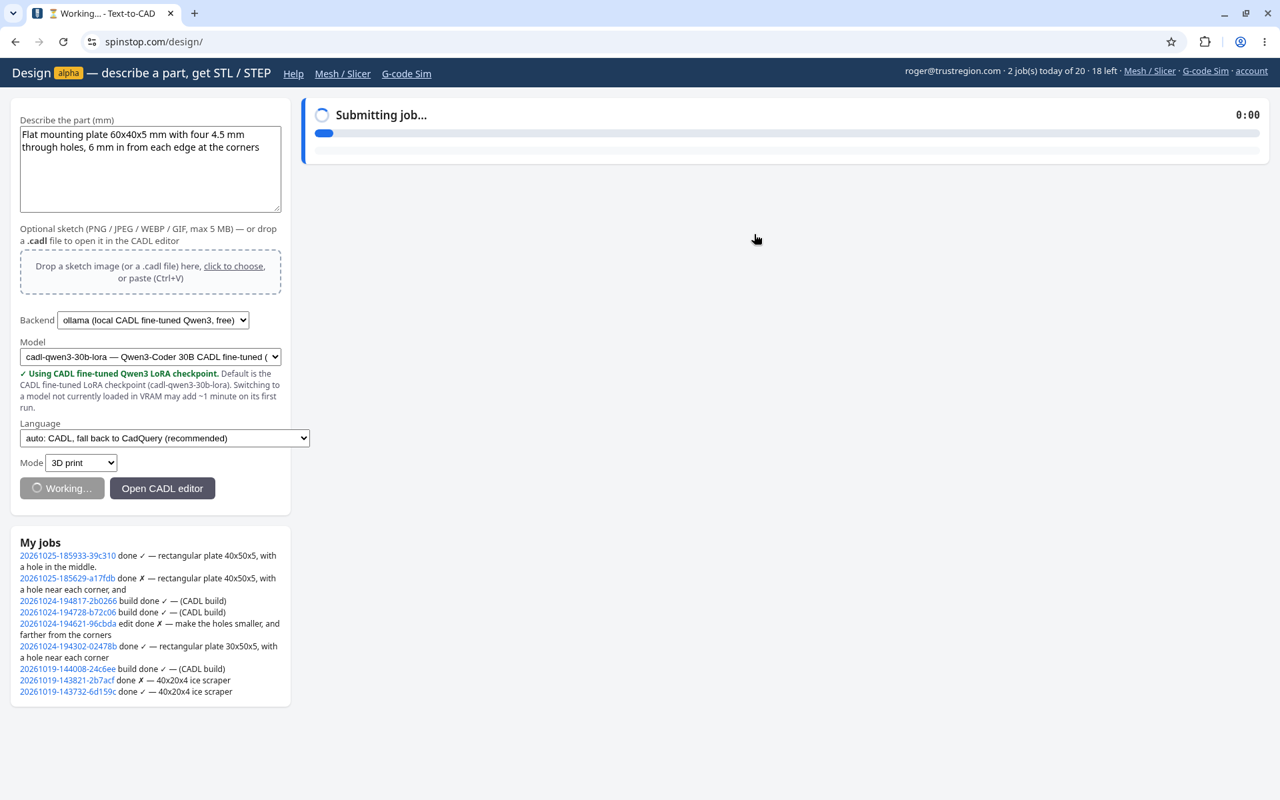
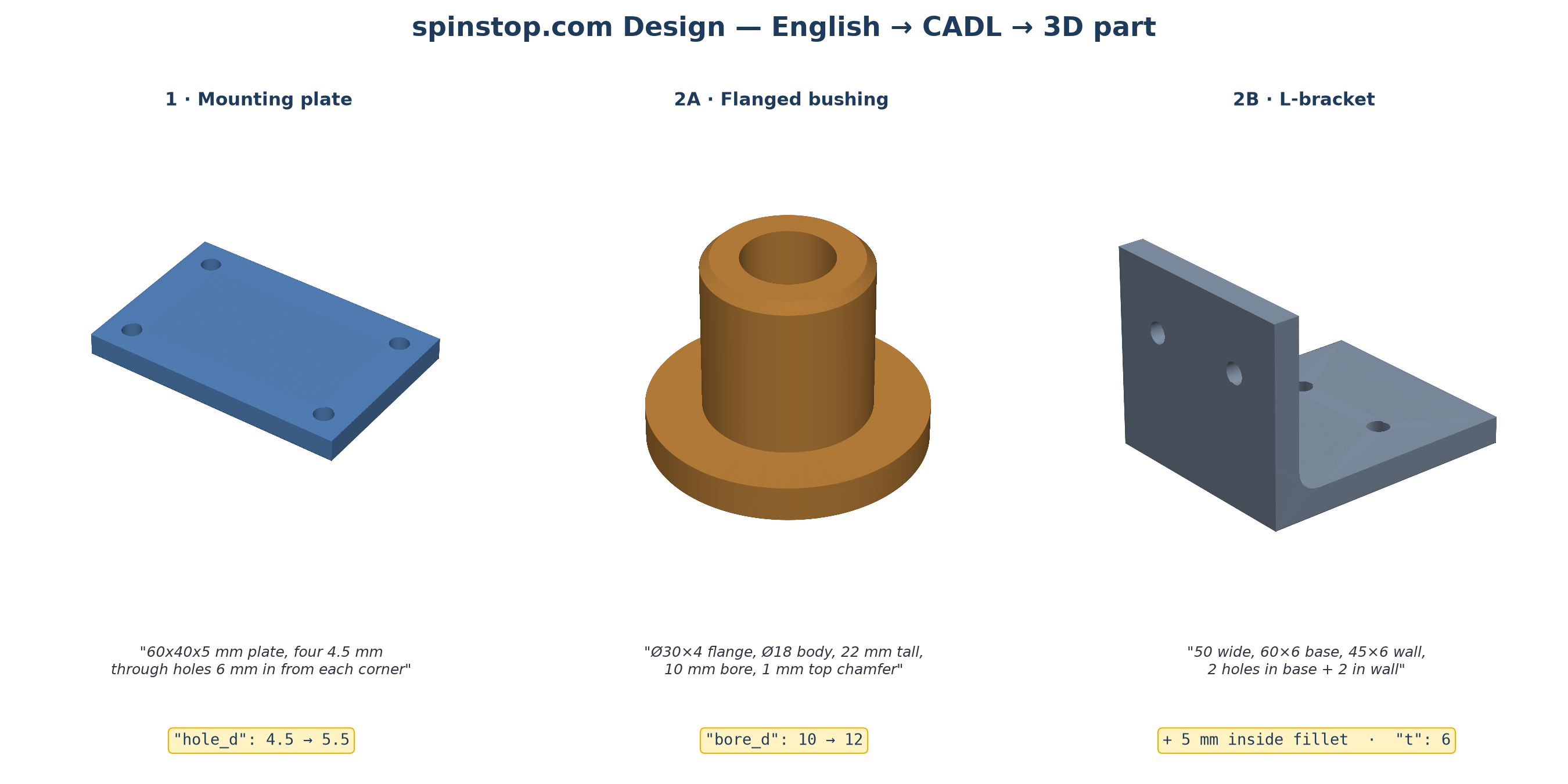
Type the overall size first, then each hole: count, diameter, position. Click Generate.
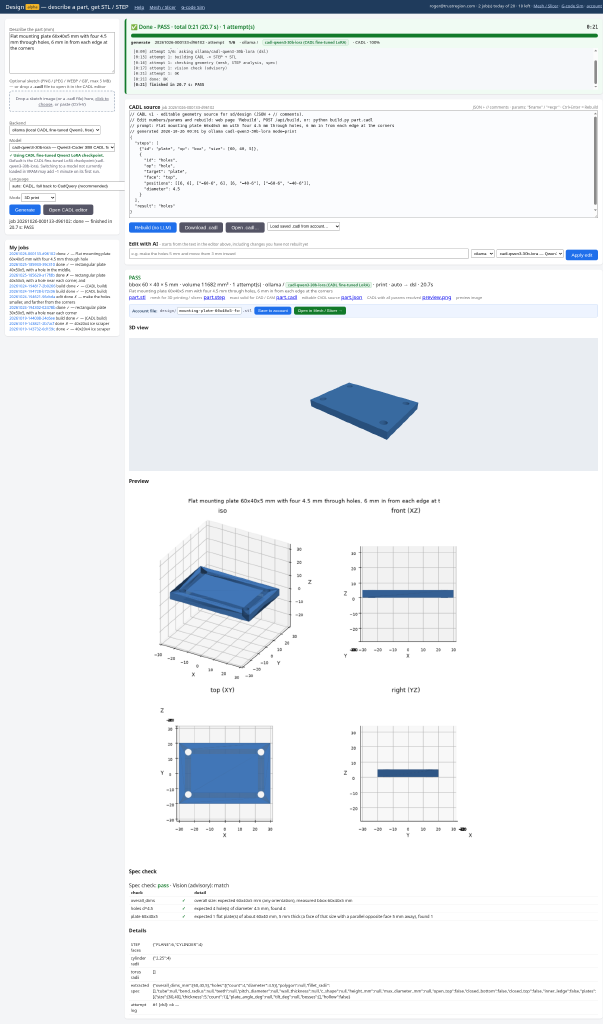
Look for PASS and compare the bbox with your sizes. Yellow notes show what the AI guessed.
params & RebuildThe CADL editor opens automatically. Change a number, then click Rebuild (no LLM) or press Ctrl+Enter. No AI is used.
Download part.stl / part.step, or Open in Mesh / Slicer → Slice to G-code → Open in Simulator.
Tutorial 1 run on the real site with the ollama model cadl-qwen3-30b-lora: ✅ PASS in 20.7 s, bbox 60 × 40 × 5 mm, 11682 mm³. Spec check passed and the vision check said "match".
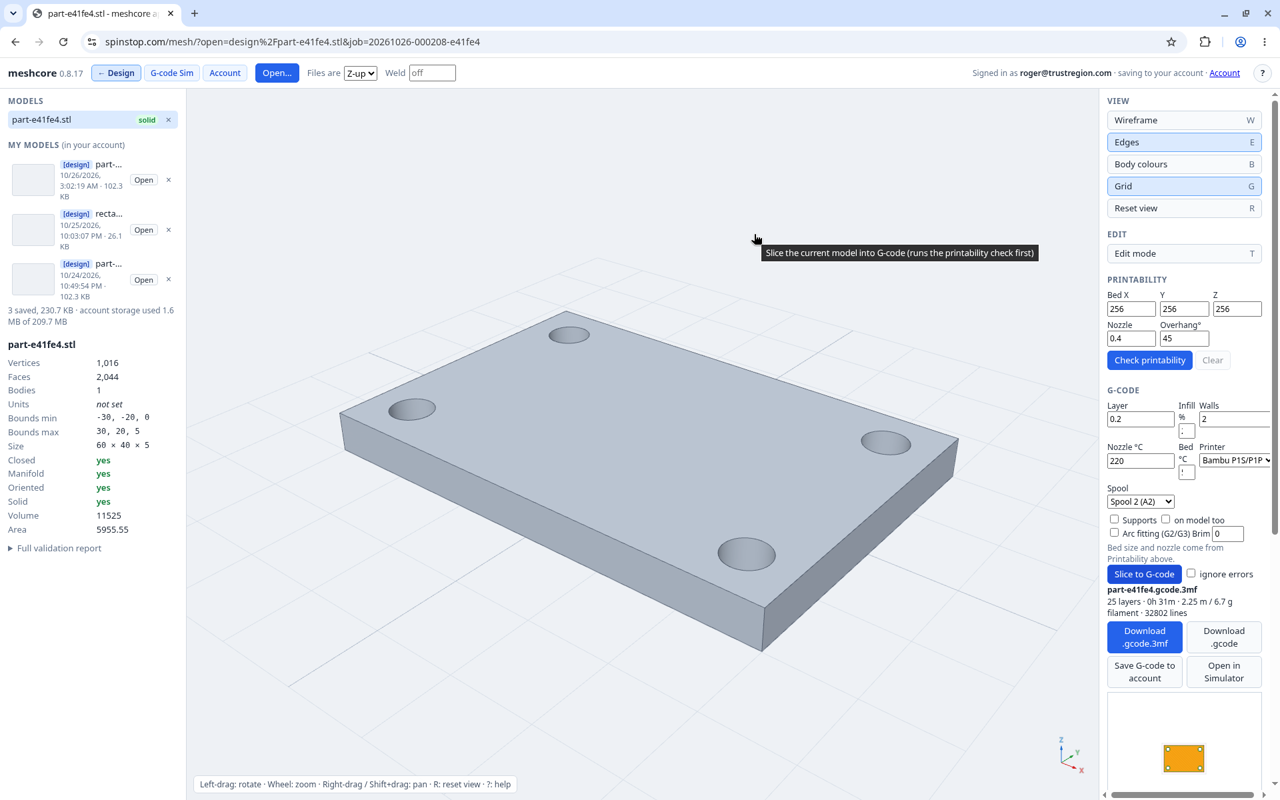
design/part-<id>.stl. Slice: 25 layers, 31 min, 6.7 g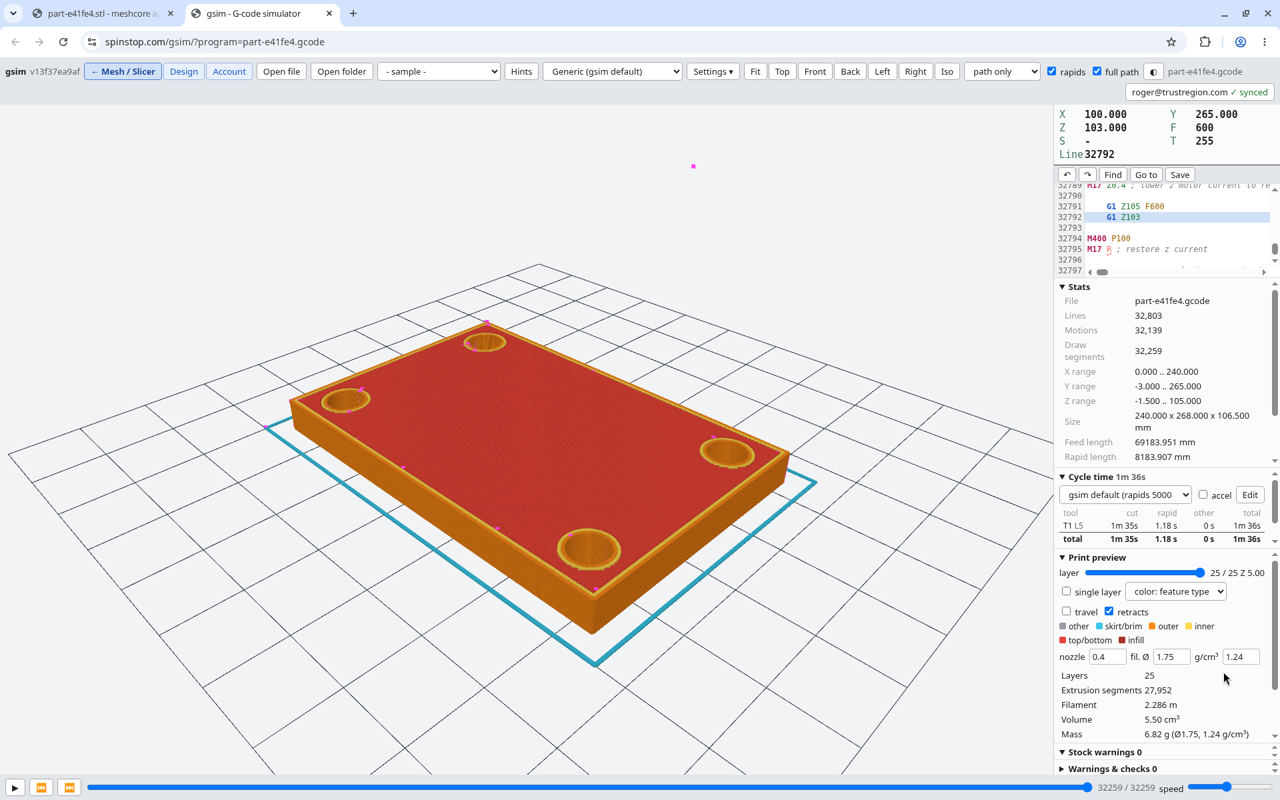
Tip: on your first visit to /mesh/, if the model doesn't appear while Pyodide is still loading, refresh the page once.
params version// live output (ollama cadl-qwen3-30b-lora) {"steps": [ {"id": "plate", "op": "box", "size": [60, 40, 5]}, {"id": "holes", "op": "hole", "target": "plate", "face": "top", "positions": [[6, 6], ["=60-6", 6], [6, "=40-6"], ["=60-6", "=40-6"]], "diameter": 4.5 → 5.5} ], "result": "holes"}
// params version: name each size once
{"units": "mm",
 "params": {"w": 60, "d": 40, "t": 5,
            "hole_d": 4.5, "inset": 6},
 "steps": [
  {"id": "plate", "op": "box",
   "size": ["$w", "$d", "$t"],
   "anchor": "corner"},
  {"id": "holes", "op": "hole",
   "target": "plate", "face": "top",
   "diameter": "$hole_d",
   "positions": [["$inset", "$inset"], ...]}],
 "result": "holes"}
With one hole size, editing "diameter" directly is simplest: the live rebuild gave 11525 mm³. Use params when a size repeats across steps or coordinates. The live compiler accepts corner-style hole positions like [6, 6] on a default (centred) box and shifts them automatically. Adding "anchor": "corner" makes that explicit.
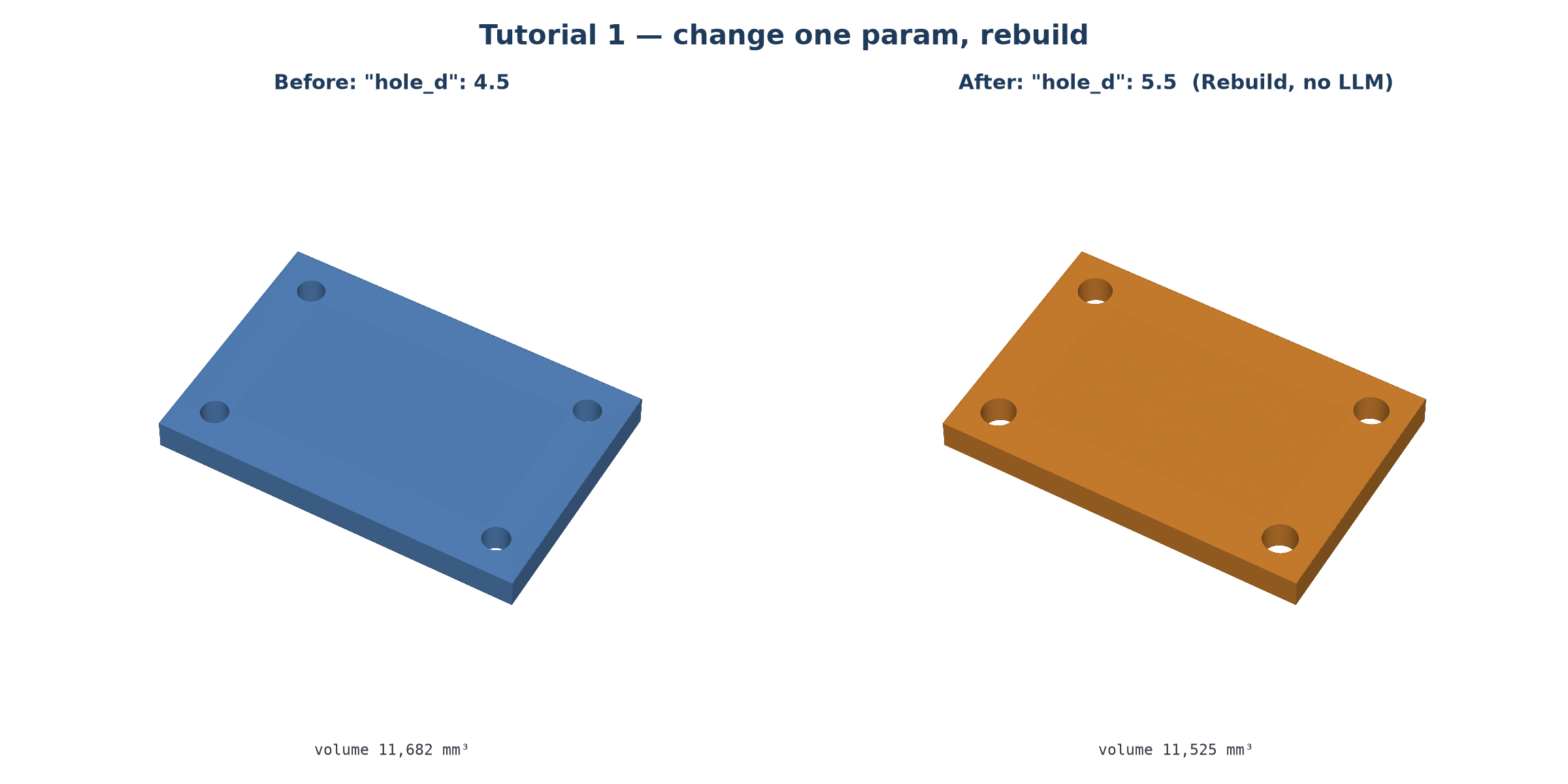
"hole_d": 4.5 → 5.5, then Rebuild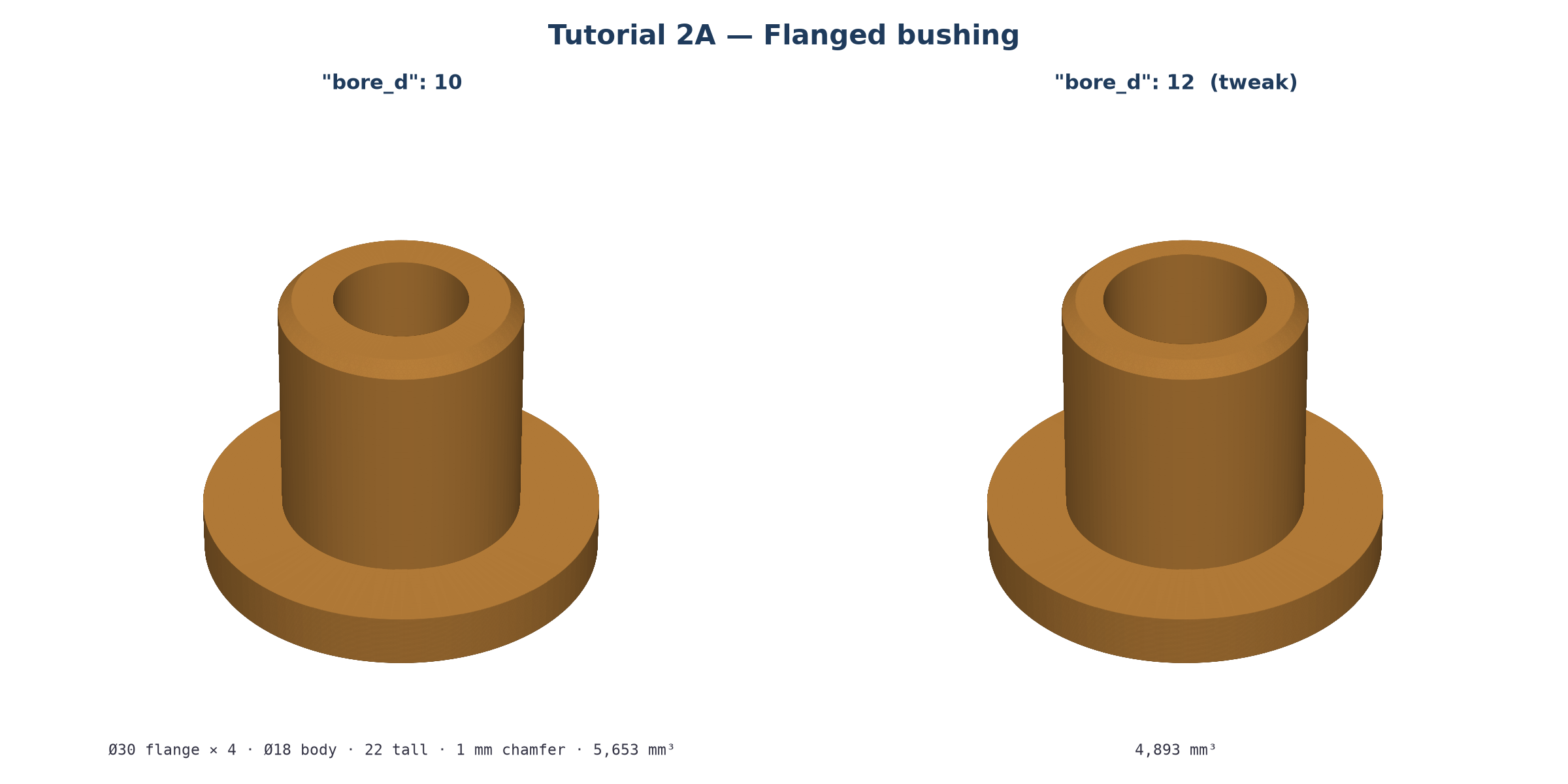
"bore_d": 10 → 12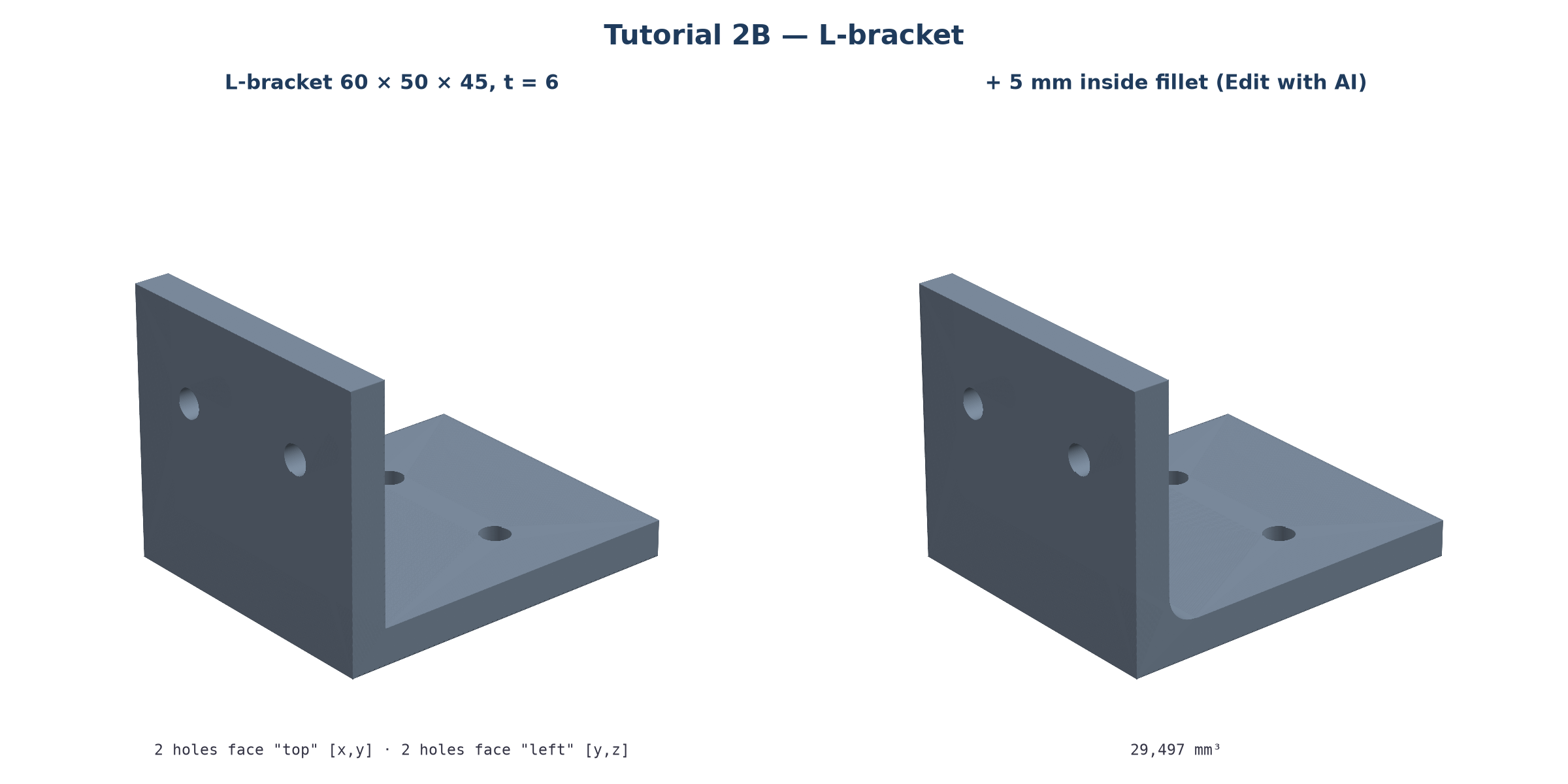
top + left, then a 5 mm fillet▶ Watch the 90-second narrated walkthrough · Example files: plate.cadl, bushing.cadl, l_bracket.cadl (plus .stl and .step in examples/)
Copy one, paste it into Describe the part (mm), and click Generate.
// CADL v1 — JSON + // comments
{
  "units": "mm",
  "plan": "1. Plate 60x40x5, corner at origin ...",
  "issues": [{"type": "assumption",
    "msg": "Holes 6 mm from each edge.", "ref": "$inset"}],
  "params": {"w": 60, "d": 40, "t": 5,
             "hole_d": 4.5, "inset": 6},
  "steps": [
    {"id": "plate", "op": "box",
     "size": ["$w", "$d", "$t"], "anchor": "corner"},
    {"id": "holes", "op": "hole", "target": "plate",
     "face": "top", "diameter": "$hole_d",
     "positions": [["$inset", "$inset"],
       ["=$w-$inset", "$inset"],
       ["$inset", "=$d-$inset"],
       ["=$w-$inset", "=$d-$inset"]]}
  ],
  "result": "holes"
}
"$hole_d" uses a value directly, and "=$w-$inset" is a formula. Change hole_d to 5.5, rebuild, and all four holes grow.id and an op (box, cylinder, revolve, hole, union, chamfer, fillet…) and can refer to earlier steps with target. Hole positions are global mm: on top they're [x, y], on front [x, z], and on left [y, z].plan and issues are notes only and never change the geometry. Issues show up as the yellow notes; click a note's $inset link to jump to that param.
| Control | What it means for you |
|---|---|
| CADL | The editable text recipe for your part. Save it with Download .cadl and load it later with Open .cadl…. |
| params | The named sizes at the top of the recipe. Change one, and every place that uses it updates. |
| Rebuild (no LLM) | Remakes the part from your edited recipe in a few seconds (Ctrl+Enter). It doesn't use the AI or your 20 AI jobs a day. |
| Edit with AI | Type a change in English, e.g. make the holes 5 mm and move them 3 mm inward, and click Apply edit. You'll see a diff and the measured changes. ↺ Undo edit restores the previous part. |
| Mode | 3D print: largest flat face on the bed, no steep overhangs. CNC (3-axis): every feature reachable from above, flat base. |
| STL vs STEP | STL is a triangle mesh for slicers (PrusaSlicer, Bambu, Orca, Cura). STEP is an exact solid for CAD and CNC CAM (FreeCAD, Fusion, Onshape, SolidWorks). |
params and rebuild. You don't need to start over.Need more? Read the full Text-to-CAD guide, which covers every control, the result checks, editing, file types, limits and troubleshooting. This is alpha software, so check every part before you print or cut it.
← Home · Tutorial 2: Bushing & Bracket → · Tutorial 3 → · Full Reference & FAQ